Stylish Fonts Keyboard
DictionaryAndTranslatorPersonalization
4.5323.00 Reviews
- Version
- 8.1.0
- Installs
- 5.00M
- Age Rating
- Everyone
Screenshots
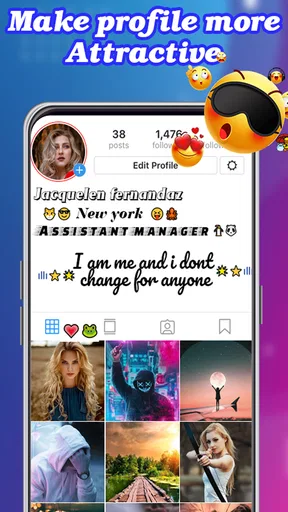
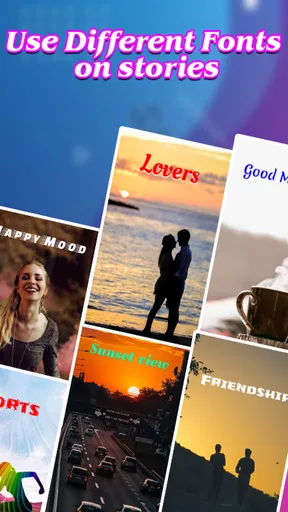
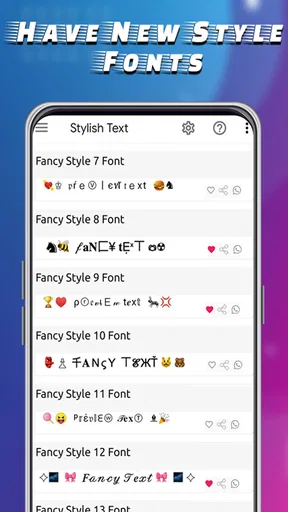
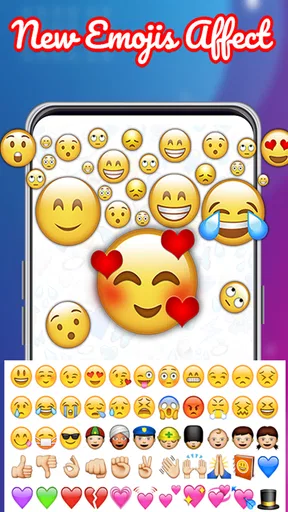
Our Review of Stylish Fonts Keyboard
 Analysis by Appyee
Hey there, font fanatics! Let’s dive into the world of text customization with Stylish Fonts Keyboard. If you’re the kind of person who loves to jazz up your messages with distinctive text, this app may be worth a try. I’ve been playing around with it, and I’m here to help you decide whether its keyboard approach suits the way you write.
Start with the way you plan to use it
Before installing a font keyboard, I’d ask one practical question: do you want decorative text in a few messages, or do you want your entire phone experience to look different? Stylish Fonts Keyboard is aimed at the first kind of personalization. It is a free Android app in the personalization category, developed by DictionaryAndTranslator, and its focus is typing text with stylized fonts rather than changing the appearance of every screen on your device.
That distinction matters. A keyboard can make a social post, profile line, or casual message feel more individual, but it is not a substitute for a full system theme or a font-setting tool that changes text throughout the operating system. I’d choose it when I want a quick visual accent while writing, not when I’m trying to redesign my phone’s menus or make every app use the same typeface.
The app is rated for Everyone, and its current version is 8.1.0, with Android 5.0 as the minimum operating system requirement. Its 4.5 average from around 35,000 ratings and more than 5 million installs suggest that this sort of lightweight text customization has a sizable audience. Those numbers are useful context, but they don’t tell me whether every font will suit my taste; the best test is whether the available styles work for the places where I actually write.
First Impressions and Setup
So, first things first, getting the Stylish Fonts Keyboard up and running is a breeze. You just download it from the App Store or Google Play, and within minutes, you’re ready to start typing in style. The installation process is straightforward, and the app guides you through setting it as your default keyboard.
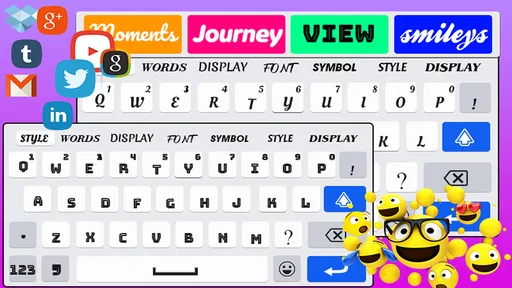
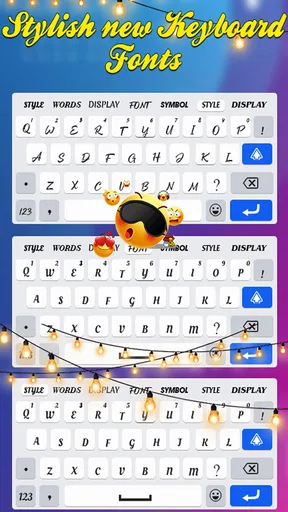
Once that’s done, you’re greeted with a sleek interface showcasing a variety of fonts. The app is well-organized, so you won’t find yourself lost in a sea of options. Everything is neatly categorized, making it easy to find the perfect font for any occasion.
One thing I’d keep in mind during setup is that a keyboard becomes part of the way you enter text, so it is worth pausing to review the choices the phone presents before making it your default. You can try a new keyboard for decorative writing and switch back to your usual one when you need a familiar layout for longer messages, passwords, or forms. That small habit makes experimentation less disruptive, especially if you only want stylized text now and then.
Using decorative text in everyday writing
I find decorative text works best when I decide what the message needs before choosing a style: a playful greeting can carry a flourish, while dates and practical details should stay easy to read. That small distinction helps keep personality from getting in the way of meaning. Next, I’ll look at which parts of the writing experience make this keyboard most useful.
Features That Stand Out
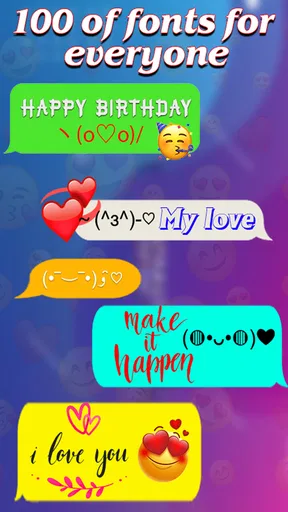
Now, let’s talk about what makes this app a standout. The font selection is vast, with hundreds of options ranging from elegant scripts to quirky, fun styles. Whether you’re texting your bestie or drafting a post for social media, there’s a font that fits the vibe.
One feature I particularly enjoyed is the ability to create custom font styles. You can tweak the size, color, and even the shadow of the text, giving you endless possibilities to express yourself. The cool part? You can save your creations and use them across different apps seamlessly.
A fun little addition is the emoji and symbol library. It’s packed with unique emoticons that add flair to your messages. You can find everything from cute animals to abstract symbols, perfect for giving your texts that extra oomph.
For a practical workflow, I’d use the more elaborate styles selectively rather than applying them to every line. A distinctive font can help a short profile description or an event announcement catch the eye; the same treatment can make a long message harder to scan. I also find it useful to draft the sentence in a plain style first, then switch to a decorative option for the small piece I want to emphasize. That keeps the message readable even when the lettering is expressive.
The emoji and symbol choices are best treated as accents, not replacements for words. A symbol can add personality to a short greeting, but a string of unusual characters may be difficult to interpret or search later. If I’m writing something another person needs to act on—an address, appointment detail, or work instruction—I’d keep the wording plain and save the decorative treatment for the greeting or closing.
Usability and Performance
When it comes to usability, the Stylish Fonts Keyboard is pretty intuitive. The keyboard is responsive, and switching between fonts is a smooth process. There’s no noticeable lag, which is a huge plus for anyone who’s been frustrated by sluggish keyboard apps in the past.
However, like any app, it’s not without its quirks. Occasionally, some fonts don’t display properly on certain apps, but this is more of a compatibility issue than a fault of the app itself. Most popular apps like WhatsApp, Instagram, and Snapchat support the fonts without a hitch.
Compatibility is the key trade-off with this kind of keyboard. What looks polished on your screen can appear differently on another device or in a service that handles unusual characters differently. Before sending a public-facing post, I’d check how the text appears in its destination and keep an ordinary-text version ready. That is especially helpful for usernames, searchable captions, and messages where another person may need to copy a phone number or other details accurately.
There is also a difference between changing how text looks and changing the actual font in the receiving app. In practice, decorative lettering may behave more like special characters than a conventional font choice, so it can affect readability, search, and text selection. I would not rely on stylized characters for accessibility-sensitive writing or anything important enough that every recipient must read it exactly as intended.
Who gets the most from it
If you’re someone who loves personalization, the Stylish Fonts Keyboard is a must-have. It’s a fun and creative way to stand out in a digital age where everyone’s texting in standard fonts. Plus, it’s free to download, with a variety of fonts available without any extra cost.
The app also offers premium options for those who want even more choices, but the free version is generous enough to keep most users satisfied. I found myself constantly switching styles just because it was so easy and fun.
I can picture it being most useful in a low-stakes everyday moment: I’m replying to a friend about weekend plans, then turning a short phrase into a playful heading for a social post. I can keep the details in regular text and use a more expressive style only for the part that benefits from a visual lift. That balance gives me the personality I wanted without asking the recipient to decipher an entire paragraph.
It is less compelling if you mostly write long emails, fill out forms, or need your text to remain consistent and easy to search. In those situations, a standard keyboard is usually the better tool, and a design app may be a better alternative when you want carefully composed lettering for an image rather than text typed directly into a message. Those alternatives solve different problems: one prioritizes dependable everyday entry, while the other gives more control over a finished visual composition.
There is a cost question too. The app is free to install, while in-app purchases range from $0.99 to $99.99 per item. I’d begin with the free options and decide whether I actually use the styles before paying for anything. The range means it is sensible to check the price of a specific purchase on its own rather than assume every extra is a small one-time add-on.
Switching without making it a chore
Trying a decorative keyboard does not have to mean abandoning the one you already know. I’d keep my usual keyboard available and switch only when I’m composing something that benefits from a different look. That gives me a straightforward fallback if a font is awkward to type with, if I’m in a hurry, or if the destination app does not display the text as expected.
A useful test is to send a short sample to a trusted friend or save a draft where I can inspect it on the screen that matters. I’d check punctuation, numbers, and any accented characters as well as the letters: a style that looks attractive in a short sample may be less practical when the sentence includes details. If the text is difficult to read at a glance, I’d choose a simpler style rather than trying to force the decorative one to work.
Another small habit is to reserve a few favorite styles for repeat situations instead of browsing every option each time. For example, I might use one look for a casual greeting and another for a short social caption, while leaving practical conversations in plain text. This keeps the keyboard playful rather than turning every message into a design decision.
Final Thoughts
In a nutshell, the Stylish Fonts Keyboard is a delightful app for anyone looking to add some pizzazz to their texts. It’s user-friendly, aesthetically pleasing, and offers an abundance of customization options. Whether you’re sending a quick message or crafting an Instagram story, this app provides the tools to make your words pop.
So, if you’re ready to ditch the mundane and embrace the stylish, give this app a whirl. Trust me, once you start using it, you’ll wonder how you ever settled for plain old fonts!
My recommendation is a little more specific: try it if you enjoy customizing short messages and social text, and if you are comfortable checking how unusual lettering looks after it leaves the keyboard. Skip it if you need uniform typography across the whole phone, prioritize maximum readability, or rarely use decorative text. For the right person, it is an easy way to add a personal touch; for everyone else, the standard keyboard may be simpler and more reliable.
Verdict
Strengths of Stylish Fonts Keyboard
- Wide variety of font styles available.
- Easy to switch between fonts quickly.
- User-friendly interface and design.
- Integrates smoothly with other apps.
- Customizable keyboard layouts.
Limitations of Stylish Fonts Keyboard
- Some fonts require in-app purchases.
- Occasional lag on older devices.
- Ads can be intrusive at times.
- Limited emoji selection compared to other apps.
- No support for multiple languages.
Other Releases by DictionaryAndTranslator
View All
Cute Wallpapers for Girls
Personalization4.8

JPEG Image Compressor & Resize
Photography4.7

Sweet Camera Selfie
Beauty4.4

Compress Video - Size Reducer
Video Players & Editors4.6
Similar Picks in This Category
View All
Microsoft SwiftKey AI Keyboard
SwiftKey4.3

Wallpapers
Google LLC4.1

Zedge™ Wallpapers & Ringtones
Zedge4.7

Yandex Browser with Alice AI
Direct Cursus Computer Systems Trading LLC4.3

Ringtone Maker:create ringtone
Big Bang Inc.4.7

Fonts Keyboard
Fonts Keyboard3.9
Frequently Asked Questions
What is the Stylish Fonts Keyboard app used for?
The Stylish Fonts Keyboard app is designed to enhance your typing experience by offering a wide variety of unique and creative fonts. Users can easily switch between fonts while typing in various apps, making their messages and social media posts stand out. It’s perfect for those looking to add a personal touch to their digital communications.
Is Stylish Fonts Keyboard compatible with all devices?
Stylish Fonts Keyboard is compatible with most Android and iOS devices. However, users should ensure their device meets the minimum operating system requirements. For Android, this usually means having Android 5.0 or higher, while iOS users should have iOS 11.0 or later. Always check the app store for specific compatibility details.
Does using Stylish Fonts Keyboard require an internet connection?
No, Stylish Fonts Keyboard does not require an internet connection for its basic functionality. Once downloaded, all fonts and features are accessible offline. However, an internet connection might be necessary for downloading additional fonts or updates that the app may offer periodically.
Are there any in-app purchases in Stylish Fonts Keyboard?
Yes, while Stylish Fonts Keyboard offers a variety of free fonts, there are additional premium fonts and features available through in-app purchases. Users can choose to buy these to enhance their experience. Always review the purchase options to understand what additional features are being offered.
How does Stylish Fonts Keyboard affect my device’s performance?
Stylish Fonts Keyboard is designed to be lightweight and efficient, ensuring minimal impact on your device’s performance. It runs smoothly without causing lags or slowdowns. However, as with any app, it’s recommended to monitor your device’s performance and ensure other apps are not causing issues.
